Showing posts with label Unix. Show all posts

Sunday, 9 July 2017

Cut command usage and examples

Cut 
Cut is used for text extraction. Like its name it cuts given number of characters or field from specified file. The cut command assumes that the fields are separated by tab character. If the fields are delimited by some other character, then option –d is used to set delimiter.

Syntax
cut [options] file_name

Options
-b Select only the bytes from each line as specified in LIST.
-c Select only the characters from each line as specified in LIST.
-d Used for the field delimiter.
-f Select only mentioned fields on each line; also print any line that contains no delimiter character.
--complement Select All Fields Except the Specified Fields.
-s
Do not print lines not containing delimiters.
--output-delimiter=STRING Set STRING as the output delimiter string.

LIST specifies a byte/character, a set of bytes/characters, or a range of bytes/characters. Each LIST is made up of an integer, a range of integers, or multiple integer ranges separated by commas.

c Nth byte, character, or field, counted from 1.
N- From the Nth byte, character, or field, to the end of the line.
N-M From the Nth to the Mth byte, character, or field (inclusive).
-M From the first to the Mth byte, character, or field.

Let us consider below skills.txt file for understanding cut examples.

cat skills.txt
Barry likes coding.
Henry like to travel.
Joseph is an dancer.
Richi is an actress.
Peter was journalist, now he is a manager.   
     
Example               

Command to display specific column from a file

cut -c3 skills.txt 
r
n
s
c
t

The above example displays third character from each line of the file skills.txt.

Command to display specific range of column from a file

cut -c1-4 skills.txt
Barr
Henr
Jose
Rich
Pete

The above example displays character from range 1 to 4 from each line of the file.

Command to display columns from a file beginning from specified Start Position

cut -c4- skills.txt
ry likes coding.
ry like to travel.
eph is an dancer.
hi is an actress.
er was journalist, now he is a manager.

The above example displays starting from 4th column till the last column of each line of the file.

Command to display columns from a file until specified End Position

cut -c-7 skills.txt
Barry l
Henry l
Joseph
Richi i
Peter w

The above example displays columns from 1st to the 7th column of each line of the file.

To display specific field from a file

When we want to display a whole field, need to use option -f and -d. The option -f specifies which field you want to extract, and the option -d specifies the field delimiter that is used in the input file.

cut -d' ' -f2 skills.txt
likes
like
is
is
was

The above example displays the second field in each line by treating the space as delimiter. 

To display multiple fields from a file

We can print more than one field by specifying the position of the fields in a comma delimited list.

cut -d' ' -f2,3 skills.txt
likes coding.
like to
is an
is an
was journalist,
The above example displays 2nd and 3rd fields only. 

To display range of fields from a file

cut -d' ' -f1-2 skills.txt
Barry likes
Henry like
Joseph is
Richi is
Peter was

The above example prints the first and second fields.

To display fields from beginning to the end field specified

In order to print the first two fields, you can ignore the start position and specify only the end position.

cut -d' ' -f-3 skills.txt
Barry likes coding.
Henry like to
Joseph is an
Richi is an
Peter was journalist,

The above example prints up to 3rd field. 

Display fields from start field specified till the ending.

To print the fields from second fields to last field, you can remove the last field position.

cut -d' ' -f2- skills.txt
likes coding.
like to travel.
is an dancer.
is an actress.
was journalist, now he is a manager.

The above example displays fields from 2nd to the last field of each line of the file.

Display fields only when line contains the delimiter

cut -d'#' -f2- skills.txt
Barry likes coding.
Henry like to travel.
Joseph is an dancer.
Richi is an actress.
Peter was journalist, now he is a manager.

In the above example, we have specified the delimiter as #, and cut command displays the whole line, even when it doesn’t find any line that has # as the delimiter.

We need to use -s option to display the lines that contains the specified delimiter.
cut -d'#' -s -f2- skills.txt

No output shown. 

Display all fields except the specified fields

In order to hide certain field use option --complement.

cut -d' ' --complement -f2 skills.txt
Barry coding.
Henry to travel.
Joseph an dancer.
Richi an actress.
Peter journalist, now he is a manager.

The above example displayed all the fields except 2nd field from the file.
For Display changing the output delimiter

By default the output delimiter is same as input delimiter that we specify in the cut -d option. To change the output delimiter use the option --output-delimiter as shown below.

cut -d' ' --complement -f2 --output-delimeter='|' skills.txt
Barry|coding.
Henry|to|travel.
Joseph|an|dancer.
Richi|an|actress.
Peter|journalist,|now|he|is|a|manager. 

The above example has the input delimiter as space , but the output delimiter is replaced by | (pipe).
When we set the –output-delimiter value to $’\n’ then each and every field of the cut command output is displayed in a separate line.

TIPS

The entire file is displayed when you don’t specify a number before or after the ‘-‘.

When calling cut command, use the -b, -c, or -f option, but only one of them.

If no FILE is specified, cut reads from the standard input.

Saturday, 8 July 2017

crontab command usage and examples

Cron 
Cron is driven by a crontab (cron table) file, a configuration file that specifies shell commands to run periodically on a given schedule. Cron is a daemon which runs at the times of system boot from /etc/init.d scripts. If needed it can be stopped/started/restart using init script or with command service crond start in Linux systems. The software utility Cron is a time-based job scheduler.

Daemon 
A daemon is a style of program that runs in the background, instead of underneath the direct management of a user, waiting to be activated by the occurrence of a selected event or condition.
There are 3 basic types of processes in Linux: Interactive, Batch and Daemon. Interactive processes are run interactively by a user at the instruction (i.e., all-text mode). Batch processes are submitted from a queue of processes and aren't related to the command line; they're compatible for performing tasks when system usage is low.

Crontab 
Crontab is the program used to edit, remove or list the tables. It typically automates system maintenance or administration by maintaining crontab files for individual users. The crontab files are stored where the lists of jobs and other instructions to the cron daemon are kept. Users can have their own individual crontab files located in /var/spool/ and often there is a system-wide crontab file that only system administrators can edit. The origin of the name cron is from the Greek word for time (chronos). cron is most suitable for scheduling repetitive tasks.

Cron jobs
Cron jobs can be allowed or disallowed for individual users, as specified in the files cron.allow and cron.deny, located in the directory /etc. If the cron.allow file exists, a user must be listed there to be allowed to use a given command. If the cron.allow file does not exist but the cron.deny file does, then a user must not be listed there in order to use a given command. If neither of these files exists, only the superuser will be allowed to use a given command

Syntax
crontab [options]

Options
-u Append the name of the user whose crontab is to be changed. If this option is not given, crontab examines "your" crontab, i.e., the crontab of the person executing the command.
-l Display the current crontab.
-r Remove the current crontab.
-e Edit the current crontab, using the editor specified in the VISUAL or EDITOR environment variables.
-i Same as -r, but gives the user a Y/N prompt before actually removing the crontab.


Fields with allowed values


   minute

0-59

   hour

   0-23

   day of month

   1-31

   month

   1-12

   day of week


   0-7 (0 or 7 is Sunday)

There are special cases in which instead of the above 5 fields you can use @ followed by a keyword:

Installing crontab from a cron file


Instead of directly editing the crontab file, you can also add all the entries to a cron-file first. 
# crontab -u flash -l
no crontab for flash

cat cron-file.txt
@daily /home/flash/ gotoearth38

# crontab cron-file.txt

# crontab –u flash -l
@daily /home/flash/ gotoearth38

This will install the cron-file.txt to your crontab, which will also remove your old cron entries. So, be careful while uploading cron entries from a cron-file.txt.


Viewing other user’s crontab entries 


# crontab -u batman -l
00 12  * * * /home/batman/check-engine-status

Examples
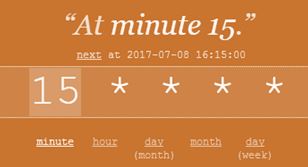
Running a job every 15 Minutes.

*/15 * * * * /home/ batman/check-engine-status

Running a job every minute.


Running a job every 15th minute of hour daily.
cron at particular minute

Running job at 09: 15 daily.cron at specific time

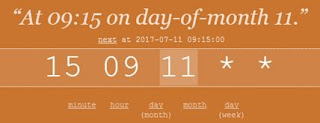
Running  job at 09: 15  on 11th of every month.
cron at specific day of month

Running  job at 09: 15  on 11th July.
cron at specific month

Running  job at 09: 15  on every Sunday in  July.
cron at specific day

Saturday, 13 May 2017

chmod command usage and example

chmod is used to change permissions of files or directories.
The chmod stands for change mode i.e. to change mode of operation of the file.

Syntax
chmod [options] permissions file_name

File ownership
  • Each file is owned by single user.
  • Each file also belongs to a single group.
  • Same ownership principles apply to directories.
Three types of user:
  • User (owner)
  • Group 
  • Other
Three types of protection:
  • Read 
  • Write
  • Execute
Super user can override nine protection flags.

File Permissions
File permissions are rules defined for each file which determines who can access that file, and how it can be accessed.
There are two ways to set these permissions as shown above:
1. Symbols (alphanumeric characters)
2. Octal numbers (0 to 7)

Changing Permissions
Examples
Lets create abc.txt file and see some examples on chmod.
$ touch abc.txt

$ ls -lrt

total 4

-rw-r--r-- 1 32578 32578 978 May 13 09:28 add.txt

-rw-r--r-- 1 32578 32578 0 May 13 09:41 abc.txt   

Granting execute permission to user, group and others.
$ chmod +x abc.txt

$ ls -lrt

total 4

-rw-r--r-- 1 32578 32578 978 May 13 09:28 add.txt

-rwxr-xr-x 1 32578 32578 0 May 13 09:41 abc.txt

Revoking execute permission.
$ chmod -x abc.txt

$ ls -lrt

total 4

-rw-r--r-- 1 32578 32578 978 May 13 09:28 add.txt

-rw-r--r-- 1 32578 32578 0 May 13 09:41 abc.txt


Granting execute permission only to user/owner.
$ chmod u+x abc.txt

$ ls -lrt

total 4

-rw-r--r-- 1 32578 32578 978 May 13 09:28 add.txt

-rwxr--r-- 1 32578 32578 0 May 13 09:41 abc.txt

Granting execute permission only to group members.
$ chmod g+x abc.txt

$ ls -lrt

total 4

-rw-r--r-- 1 32578 32578 978 May 13 09:28 add.txt

-rwxr-xr-- 1 32578 32578 0 May 13 09:41 abc.txt

Granting execute permission only to others.
$ chmod o+x abc.txt

$ ls -lrt

total 4

-rw-r--r-- 1 32578 32578 978 May 13 09:28 add.txt

-rwxr-xr-x 1 32578 32578 0 May 13 09:41 abc.txt

Revoking read permission from user, group and others.
$ chmod -r abc.txt

$ ls -lrt

total 4

-rw-r--r-- 1 32578 32578 978 May 13 09:28 add.txt

--w------- 1 32578 32578 0 May 13 09:41 abc.txt

Revoking write permission from user, group and others.
$ chmod -w abc.txt

$ ls -lrt

total 4

-rw-r--r-- 1 32578 32578 978 May 13 09:28 add.txt

---------- 1 32578 32578 0 May 13 09:41 abc.txt

Changing permission for user, members of group and others simultaneously.
$ chmod u=rwx,g=rwx,o=x abc.txt

$ ls -lrth

total 4.0K

-rw-r--r-- 1 32578 32578 978 May 13 09:28 add.txt

-rwxrwx--x 1 32578 32578 0 May 13 09:41 abc.txt

Changing permission for user to read, write, execute; members of group to read and execute and others to execute .
$ chmod 755 abc.txt

$ ls -lrth

total 4.0K

-rw-r--r-- 1 32578 32578 978 May 13 09:28 README.txt 
 
-rwxr-xr-x 1 32578 32578 0 May 13 09:41 abc.txt

Saturday, 29 April 2017

free command usage and example

free 
It displays information about free and used memory on the system.

The total shows you the total memory assigned to machine but it excludes a small amount of RAM which is reserved for kernel for booting purpose

The first line, labeled Mem, displays physical memory utilization, including the amount of memory allocated to buffers and caches. 

A buffer memory, is a portion of memory that is set aside as a temporary holding place for data. Cache is a memory location to store frequently used data for faster access. Other difference between a buffer and a cache is that cache can be used multiple times where as buffer is used single time. 

Second line shows total buffers/Cache used and free.

Third line shows total swap memory available, used swap and free swap memory size available.

We can find more detailed information about total memory and current memory usage from the proc/meminfo file.

Syntax
free [options]

When used with no option it shows output in kilobytes.

Options
-b Will displays output in bytes
-k Will displays output in kilobytes
-m Will displays output in megabytes
-g Will displays output in gigabytes
-s num Will update free command every num seconds
-l Will displays detailed lowhigh memory statistics
-V Shows version

Example


watch
The alternative is to use free with its -s option using the watch command, which by default runs a program provided to it as an argument every two seconds after first temporarily clearing the screen.

watch free

watch -n 1 -d free

The -d (difference) option highlights changes in output, and its -n option followed by the number one to increase the frequency to one per second.

last and lastb command usage and examples

last
The last command is used to show who has recently used the server and logged in and out. The last command reads listing of last logged in users from the system file called /var/log/wtmp.

Syntax
last [options]
If no options provided last command displays a list of all users logged in/out since /var/log/wtmp file was created.

 Options

user_name Shows specific user last logged in.
tty last will show only those entries matching tty. Names of ttys can be abbreviated, thus last 1 is the same as last tty1.
-t YYYYMMDDHHMMSS Will show state of logins as of the specified time.
-f file Will search specific file other than /var/log/wtmp
-F Will show full login and logout times and dates.
-R Will remove display of the hostname field.
-num Show num lines in the output of last command
-n num
-a Show the hostname in the last column.
-d Will translates the IP number back into a hostname
-i Similar to option –d but it displays the IP number in numbers-and-dots notation
-w Show full user and domain names in the output.
-x Show last shutdown entries and run level changes.

Example

The below example shows recently logged in and out users on your server

last

root pts/0 171.1.6.34 Tue Apr 28 05:59 still logged in

root pts/1 171.1.6.34 Tue Apr 28 04:08 still logged in

root pts/1 171.1.6.34 Sat Apr 25 06:33 - 08:55 (02:22)

root pts/0 171.1.6.34 Thu Apr 23 17:47 - 18:51 (01:03)

root pts/1 171.1.6.34 Thu Apr 23 14:02 - 14:51 (00:48)

root pts/0 171.1.6.34 Tue Apr 7 08:02 - 08:38 (00:35)

lastb
lastb is the same as last, except that by default it shows a log of the file /var/log/btmp, which contains all the bad login attempts.

Syntax
lastb [options]

If no options provided last command displays a list of all users logged in/out since /var/log/btmp file was created.

Wednesday, 26 April 2017

top command usage

top
top provides an ongoing look at processor activity in real time. It displays a listing of the most CPU-intensive tasks on the system, and can provide an interactive interface for manipulating processes. It can sort the tasks by CPU usage, memory usage and runtime. Can be better configured than the standard top from the procps suite. Procps is the package that has a bunch of small useful utilities that give information about processes using the /proc filesystem. The package includes the programs ps, top, vmstat, w, kill, free, slabtop, and skill. Most features can either be selected by an interactive command or by specifying the feature in the personal or system-wide configuration file.

Syntax
top [options]

Options

-a 
Sort by memory usage

-b 
Starts top in 'Batch mode', which could be useful for sending output from top to other programs or to a file. In this mode, top will not accept input and runs until the iterations limit you've set with the '-n' command-line option or until killed.

-c 
Starts top with the last remembered 'c' state reversed. Thus, if top was displaying command lines, now that field will show program names, and vice versa.

-d 
Delay time interval as: -d ss.tt (seconds. tenths) Specifies the delay between screens updates, and overrides the corresponding value in one's personal configuration file or the startup default. Later this can be changed with the ’d’ or 's' interactive commands. Fractional seconds are honored, but a negative number is not allowed. In all cases, however, such changes are prohibited if top is running in 'Secure mode', except for root (unless the ’s’ command-line option was used).

-h 
Show Library version and the usage prompt, then quit.

-H 
Starts top with the last remembered 'H' state reversed. When this toggle is On, all individual threads will be displayed. Otherwise, top displays a summation of all threads in a process.

-i 
Starts top with the last remembered 'i' state reversed. When this toggle is Off, tasks that are idled or zombie will not be displayed.

-m 
Reports USED (sum of process and swap total count) instead of VIRT

-M 
Show memory units (k/M/G) and display floating point values in the memory summary.

-n 
Specifies the maximum number of iterations, or frames, top should produce before ending.

-p 
Monitor only processes with specified process IDs. This option can be given up to 20 times, or you can provide a comma delimited list with up to 20 process IDs. Co-mingling both approaches is permitted. This is a command-line option only. And should you wish to return to normal operation, it is not necessary to quit and restart top -- just issue the '=' interactive command.

-s 
Starts top with secure mode forced, even for root. This mode is far better controlled through the system configuration file (see topic 5. FILES).

-S 
Starts top with the last remembered 'S' state reversed. When 'Cumulative mode' is On, each process is listed with the CPU time that it and its dead children have used. See the 'S' interactive command for additional information regarding this mode.

-u Monitor only processes with an effective UID or user name matching that given.

-U 
Monitor only processes with a UID or user name matching that given. This matches real, effective, saved, and file system UIDs.

-v 
Show library version and the usage prompt, then quit.

Output 
PID The process id.
USERNAME

Username of the process's owner (if -u is specified, a UID column will be substituted for USERNAME).
THR

The number of threads in the processes also labeled as NLWP.
PR
Current priority of the process.
NICE

Nice amount in the range -20 to 20, as established by the use of the command nice.
SIZE

Total size of the process (text, data, and stack) given in kilobytes.
VIRT Virtual memory used by process,  
RES

Resident memory: current amount of process memory that resides in physical memory, given in kilobytes.
SHR Shows the shareable memory
CPU
Percentage of available cpu time used by this process.
MEM Memory used by process as a percentage 
TIME
Number of system and user cpu seconds that the process has used.
COMMAND
Name of the command that the process is currently running.

Example
top
top - 20:50:55 up 167 days, 14:26, 82 users, load average: 0.13, 0.05, 0.01
Tasks: 3 total, 1 running, 2 sleeping, 0 stopped, 0 zombie
Cpu(s): 0.0% user, 2.2% system, 0.0% nice, 97.8% idle
Mem: 514964k total, 507860k used, 7104k free, 30404k buffers
Swap: 1630588k total, 158708k used, 1471880k free, 275380k cached
PID USER PR NI VIRT RES SHR S %CPU %MEM TIME+ COMMAND 3747
hope 11 0 2004 1608 1608 S 0.3 0.3 0:00.56 sshd 22245
hope 10 0 688 676 672 S 0.0 0.1 0:00.06 csh 14015
hope 10 0 1024 1024 848 R 0.0 0.2 0:00.00 top

Startup Defaults
The following startup defaults assume no configuration file, thus no user customizations. Even so, items shown with an asterisk ('*') could be overridden through the command-line.Startup Defaults

 Some more options in running top command

O To Sort field via field letter.
z Will display running process in color.
x Will highlight the values in the sort column with bold text.
b Will highlight with a different background color.
c Will display absolute path of running process.
1 Will display the load information about individual CPU cores.
V Will display the processes in a parent child hierarchy.
r Will change the priority of the process also called as renice.
R Will reverse the sorting order of the currently sorted column.
k We can kill a process after finding PID of process by pressing ‘k‘ option in running top command without exiting from top window.
P Will sort processes as per CPU utilization.
W Will save the running top command results under /root/.toprc
ctrl + z Will pause top so that we can continue using the terminal. To bring top back to the foreground, type fg.
f By default top displays only few columns out of many more that it can display. If you want to add or remove a particular column or change the order of columns.